

Release history lists everything you have built and sent for a mobile app: files, store releases and OTA updates. Open it from the side navigation of the Releases tab.
How Releases Are Grouped
Releases are grouped by app version, newest first. Each version shows how many store releases, files and OTA updates it has. Click a version to see its releases, or type a version in Search version to find it.
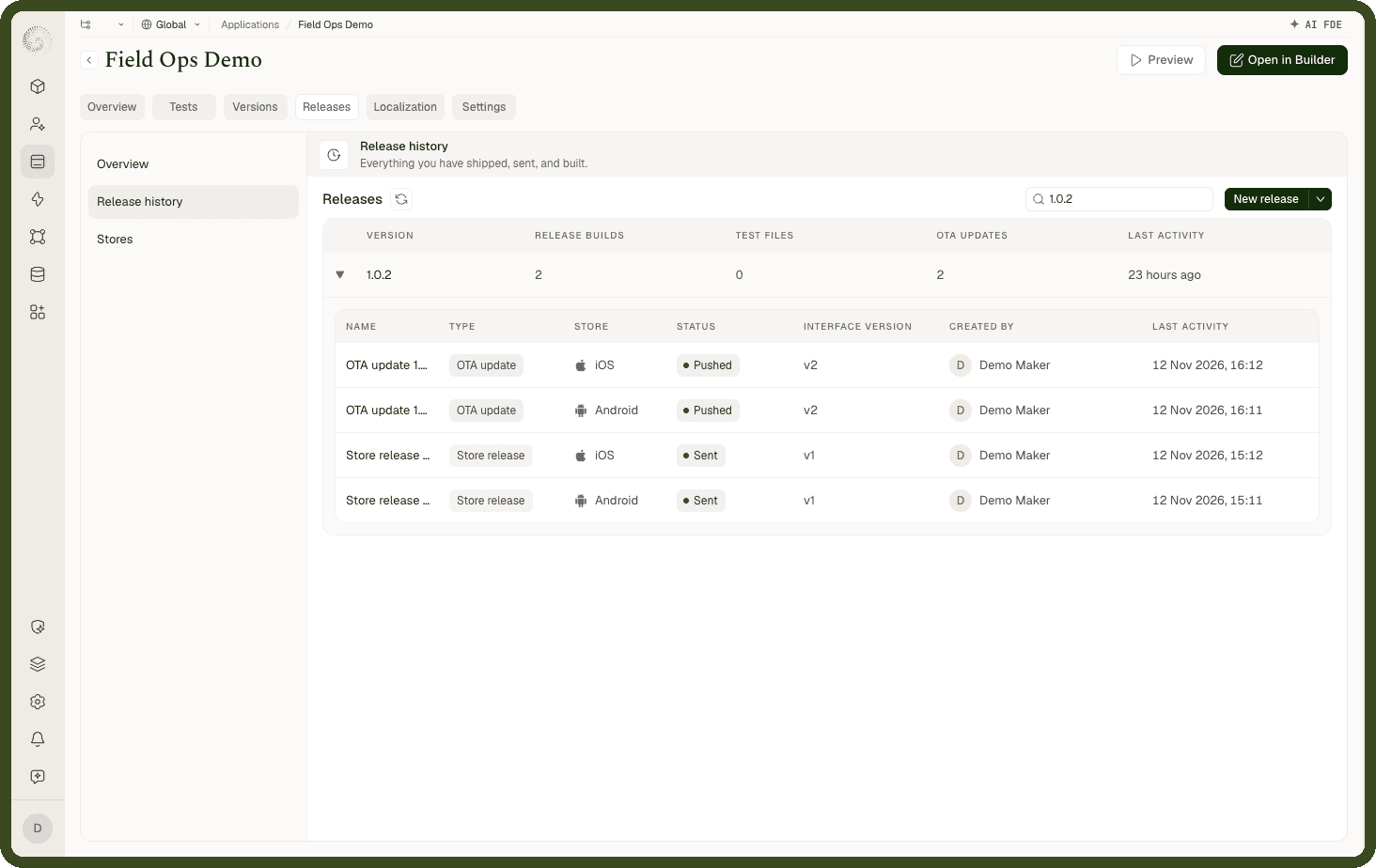
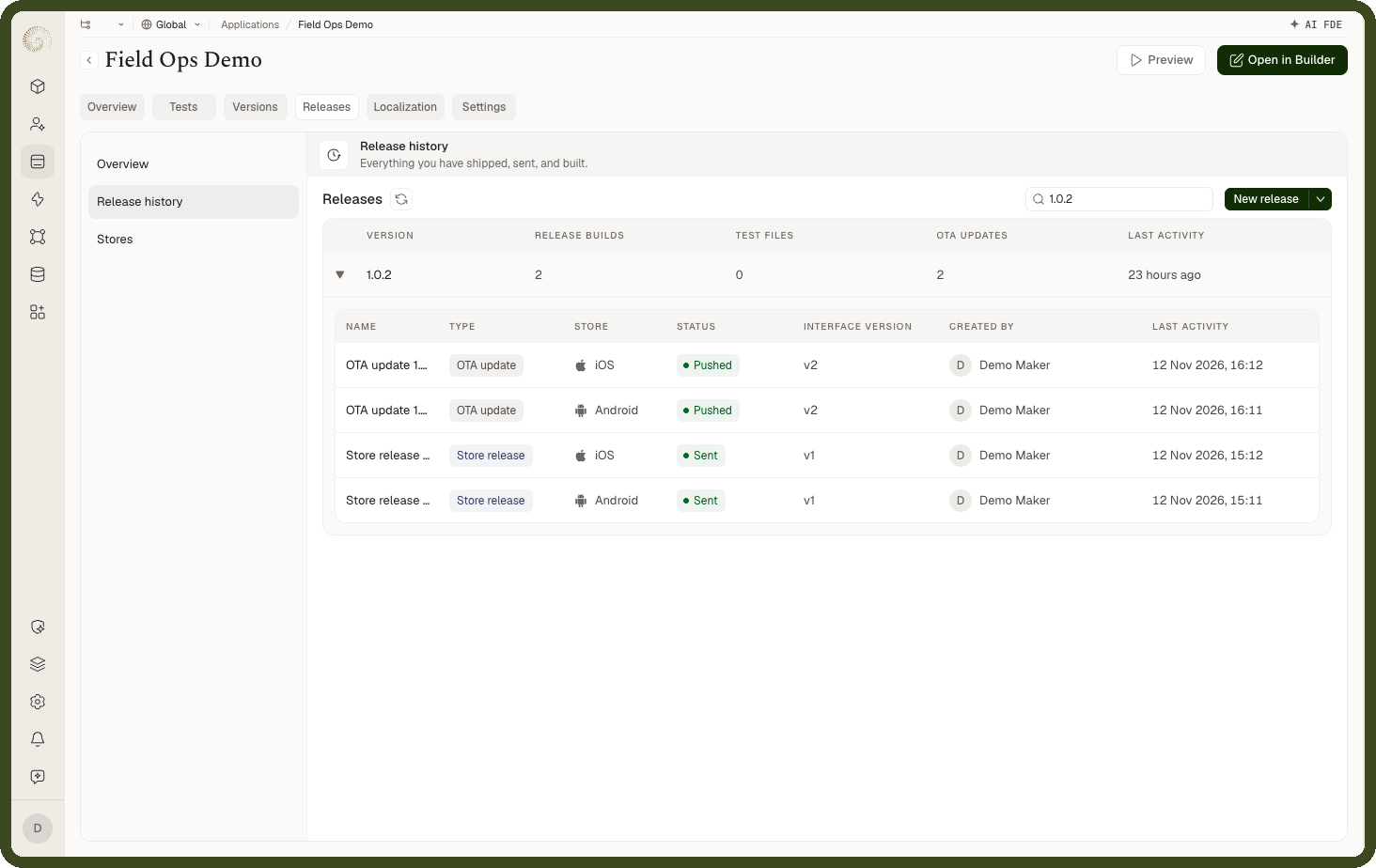
Click any release to open its details: the platform, the version and build number, who started it, when, and what changed.
What Each Status Means
| Status | Meaning |
|---|---|
| Building | The build is running. It usually takes 15 to 30 minutes. |
| Ready | A file has finished building and can be downloaded. |
| Sent | The build was uploaded to Google Play or App Store Connect. |
| Pushed | An OTA update has gone out to installed apps. |
| Failed | The build stopped with an error. Open it to see the logs, then click Try again. |
| Cancelled | The build was stopped before anything shipped. |
Stopping or Restarting a Build
Stop a build: Open a release that is Building and click Cancel build. Nothing reaches your users.
Start it again: Open a cancelled release and click Build again, or a failed one and click Try again. It runs with the same settings.
Note: Only one build runs at a time on each platform. Cancelling a build lets the next one start straight away.