

The Excel by UnifyApps node reads, writes, converts, and merges Excel files from within an automation — covering row-level iteration, report generation, and format conversion across XLSX, XLS, and XLSB.
Overview
The Excel by UnifyApps node enables powerful Excel file operations within automation flows. Whether generating reports, transforming file formats, extracting data, or updating spreadsheets, these actions provide seamless integration with Excel files in various formats (XLSX, XLS, XLSB).
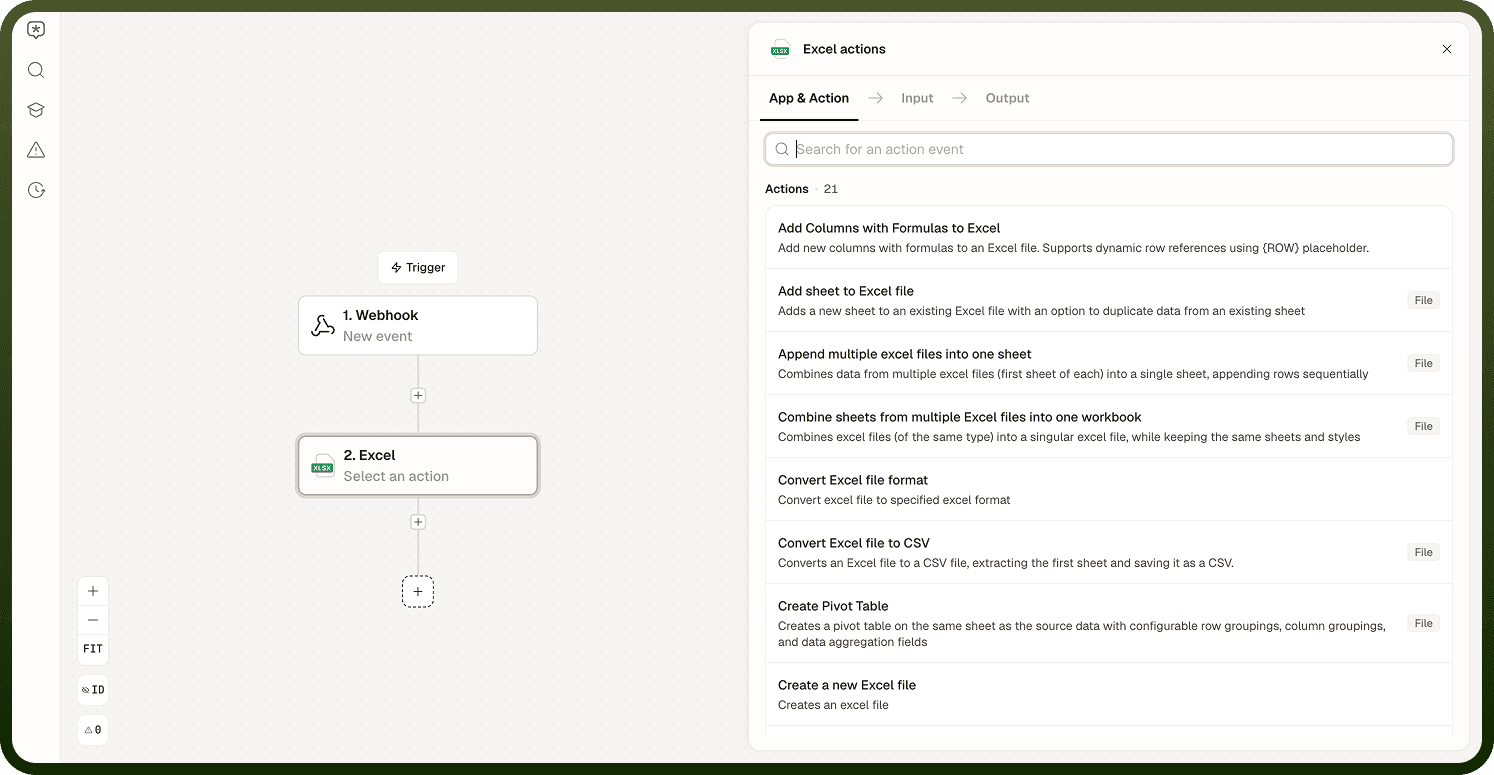
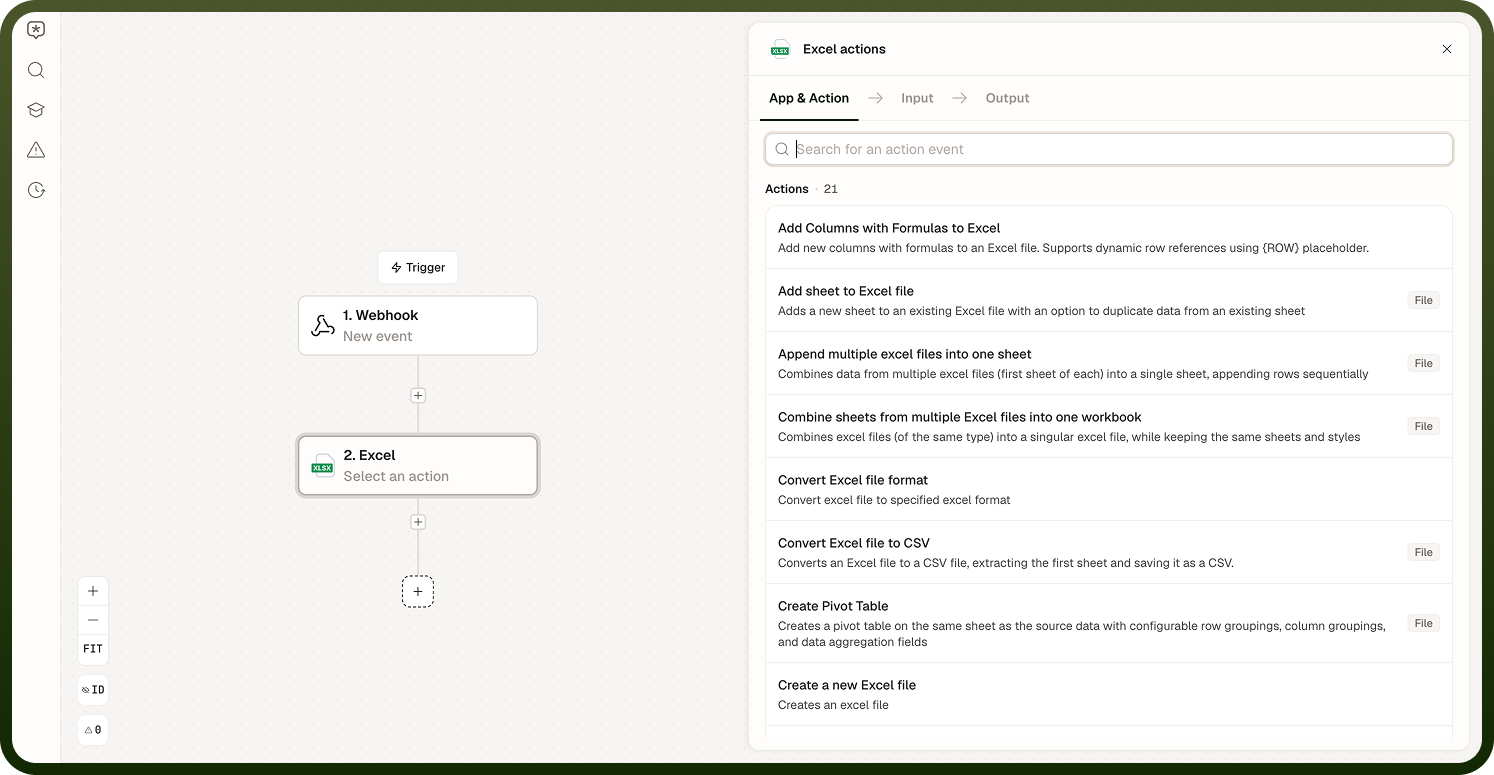
Iterate over Rows in Excel File
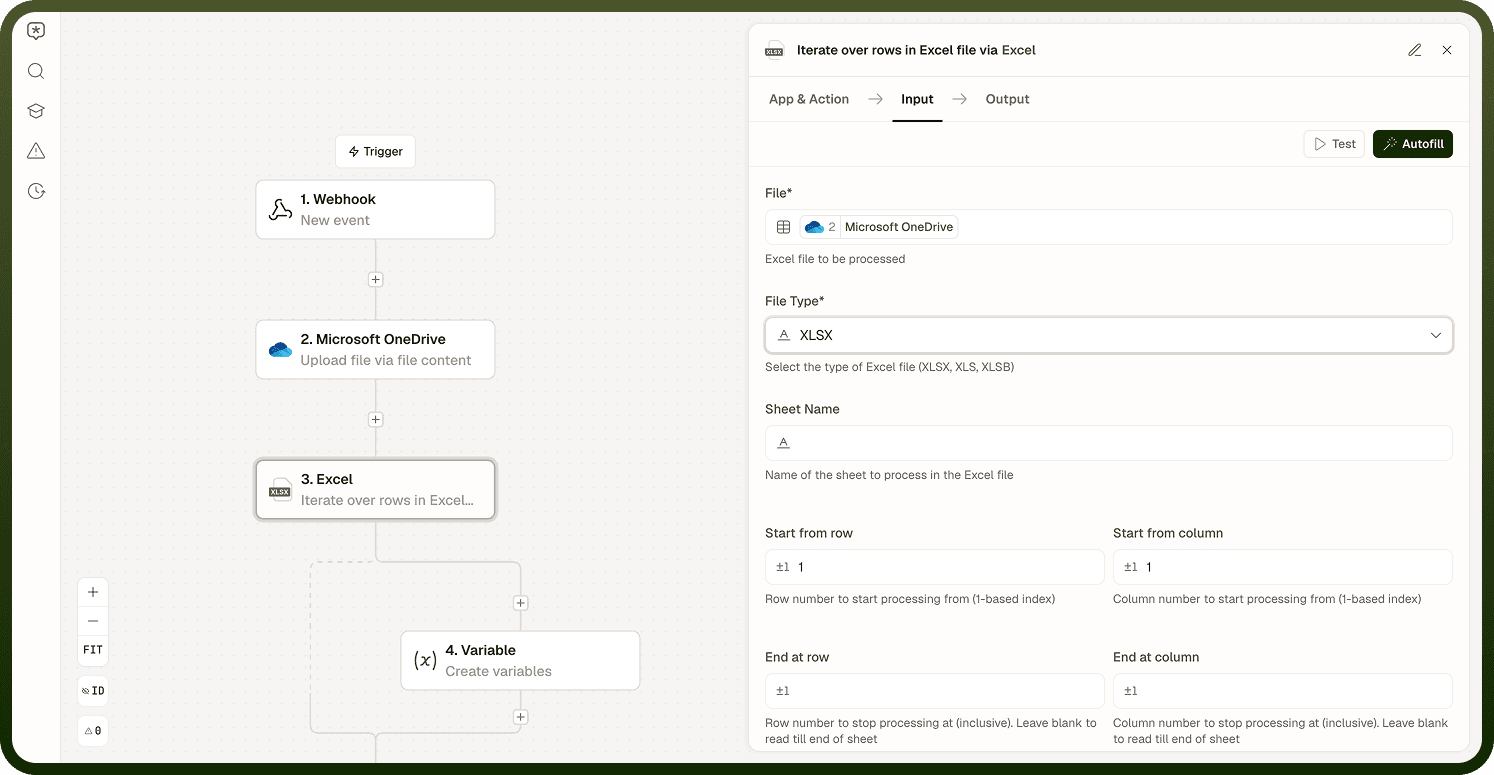
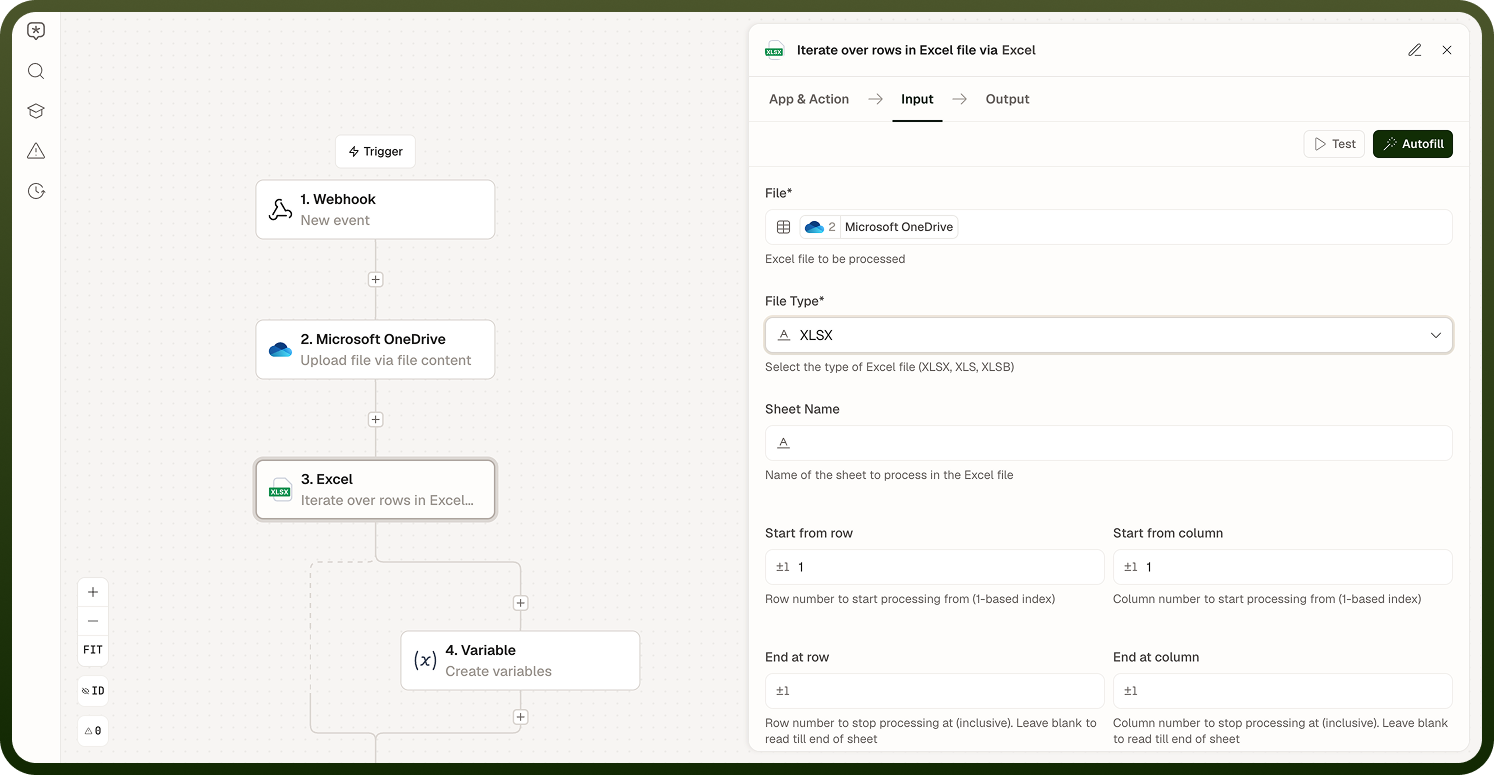
Loops over the rows of a specified Excel file, running the automation's inner steps once per row (or once per batch of rows).
Configuration: File (the Excel file object); File Type (XLSX, XLS, or XLSB); Sheet Name; Start from Row / Start from Column and End at Row / End at Column (define the range to read); Header Row (true/false); Columns (fields to extract); Evaluate Formulae; Skip Empty Rows; Mention Data Consumption Behaviour (consume all data as string, or based on cell type); Batch (process rows in batches, with a Batch Size when enabled); Use Streaming (process large files efficiently by streaming data instead of loading the entire file into memory).
Output data pills: Item (the current row object), Index, Is First / Is Last (boolean indicators), Total Rows.
Convert Excel File Format
Converts Excel files between any supported formats (XLSX, XLS, XLSB).
Configuration: Source File Type; Target File Type; File; File Name (including extension). Output: Converted File in the selected format.


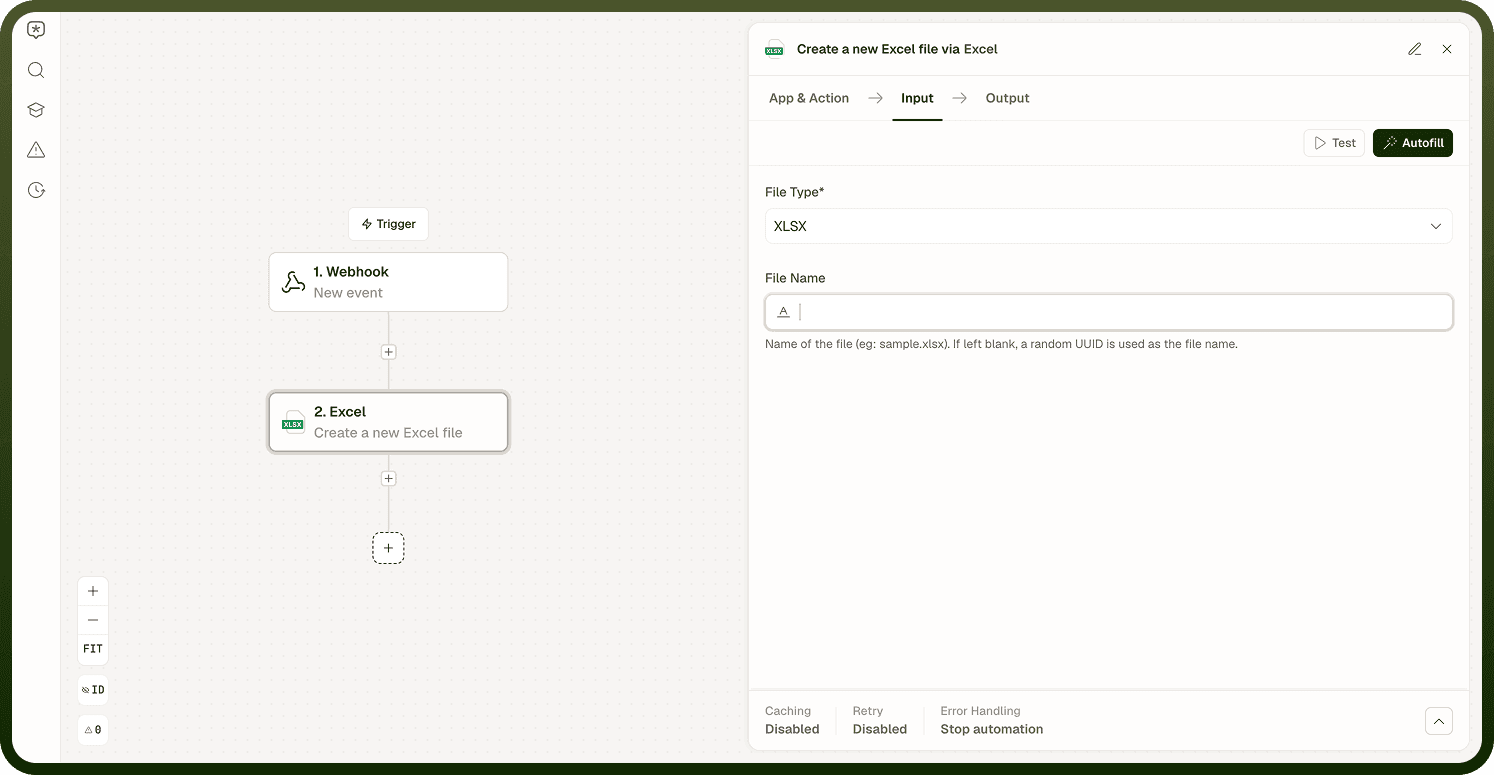
Create an Excel File
Creates a new empty Excel file in the chosen format (XLSX, XLS, or XLSB).
Configuration: File Type; File Name (including extension). Output: Created File object representing the newly created Excel file.
Extract Headers from Excel
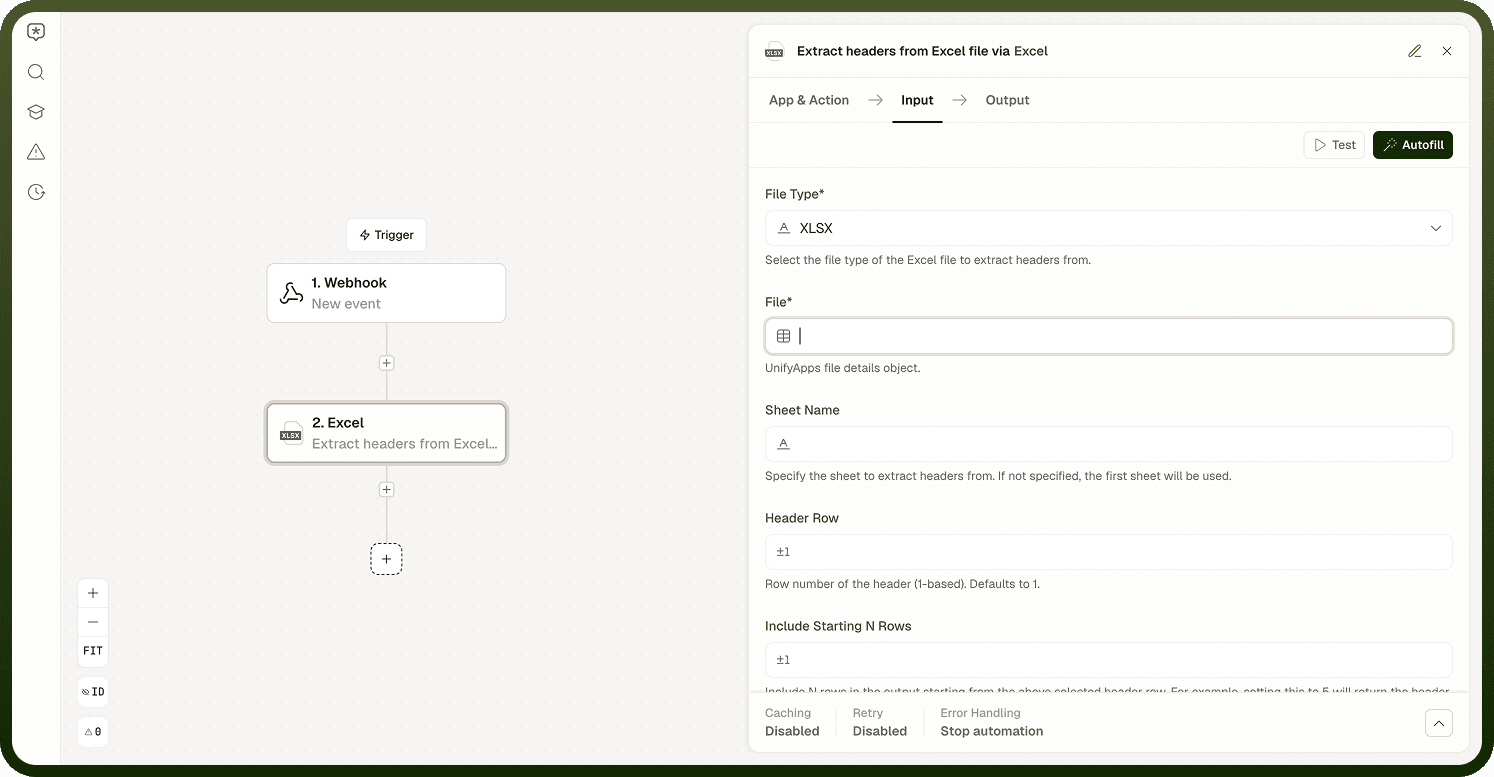
Extracts column names from an existing Excel file, useful for identifying file structure.
Configuration: File Type (XLSX, XLS, or XLSB); File Name (source file). Output: Headers (list of column headers).
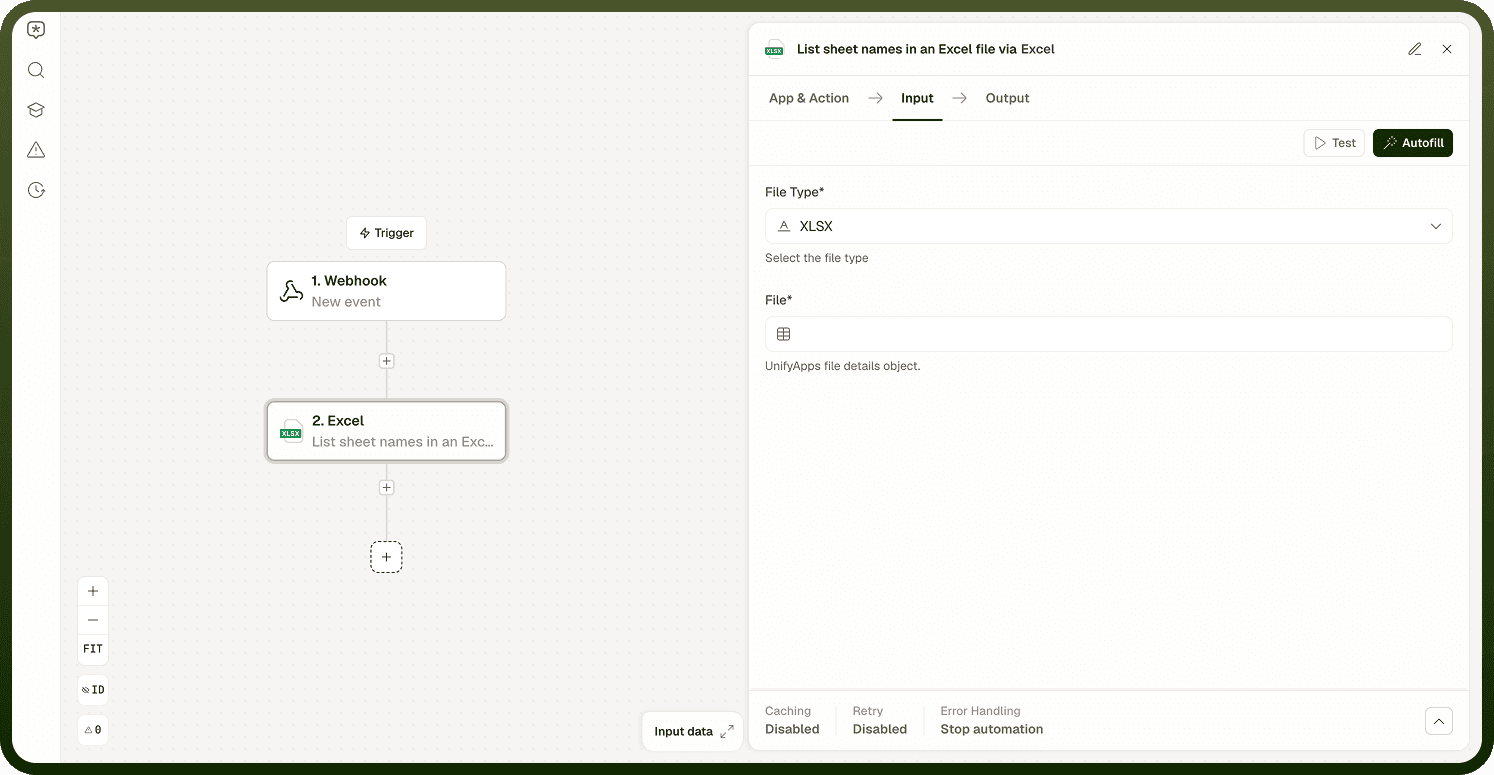
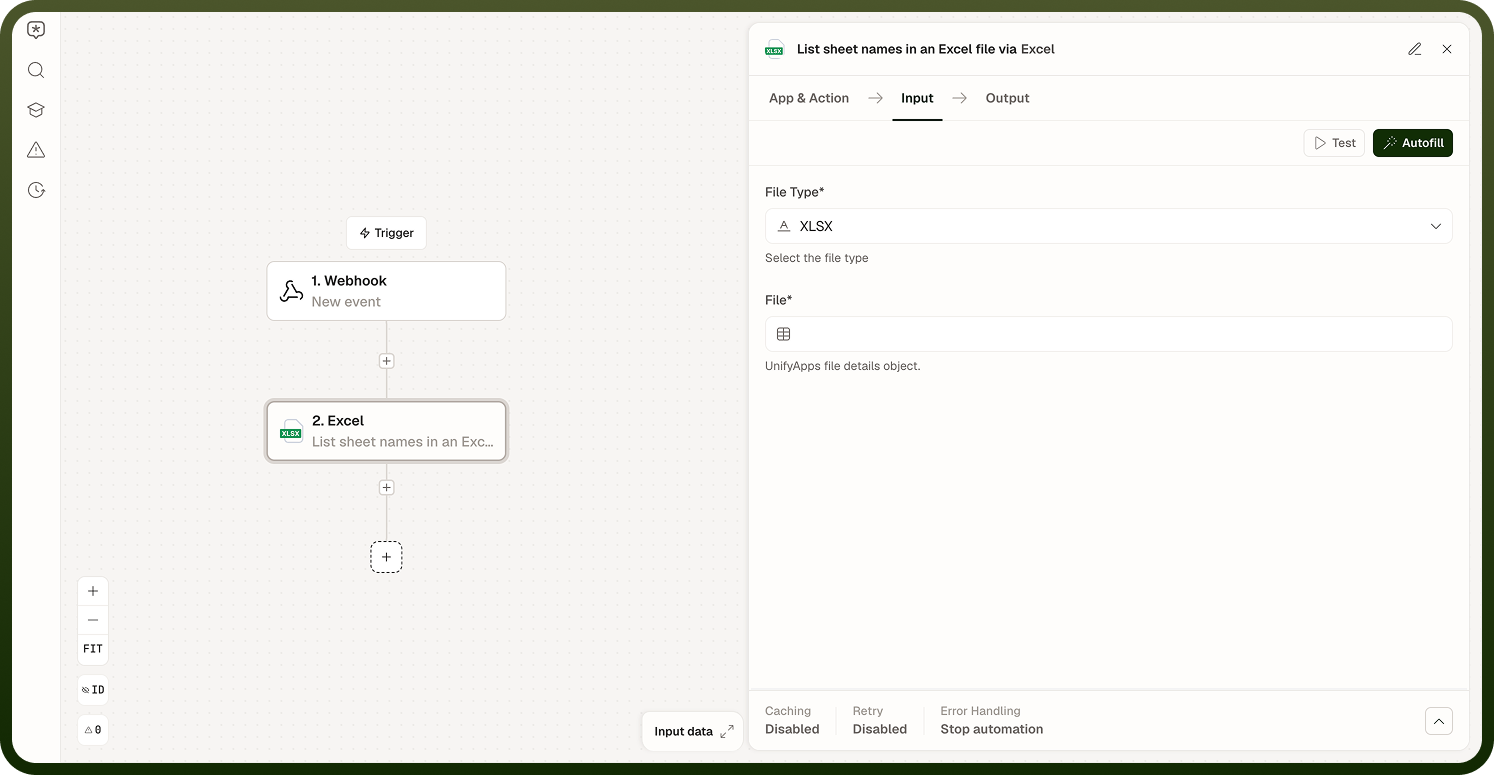
List Sheet Names in an Excel File
Retrieves all sheet names from an existing Excel file, useful for multi-sheet workbooks.
Configuration: File Type (XLSX, XLS, or XLSB); File Name (source file). Output: Sheet Names (list of all sheets).
Combine Multiple Excel Files into One File
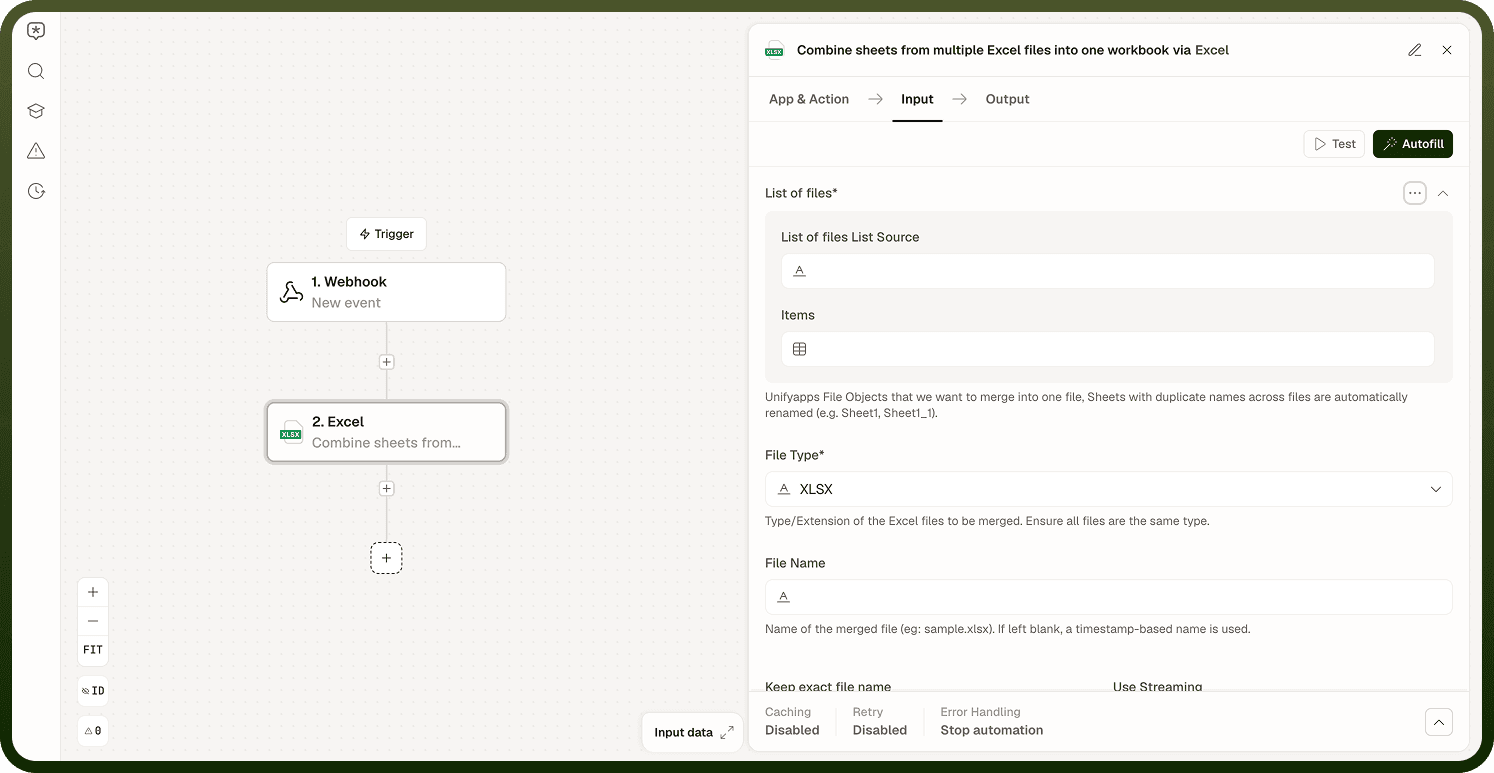
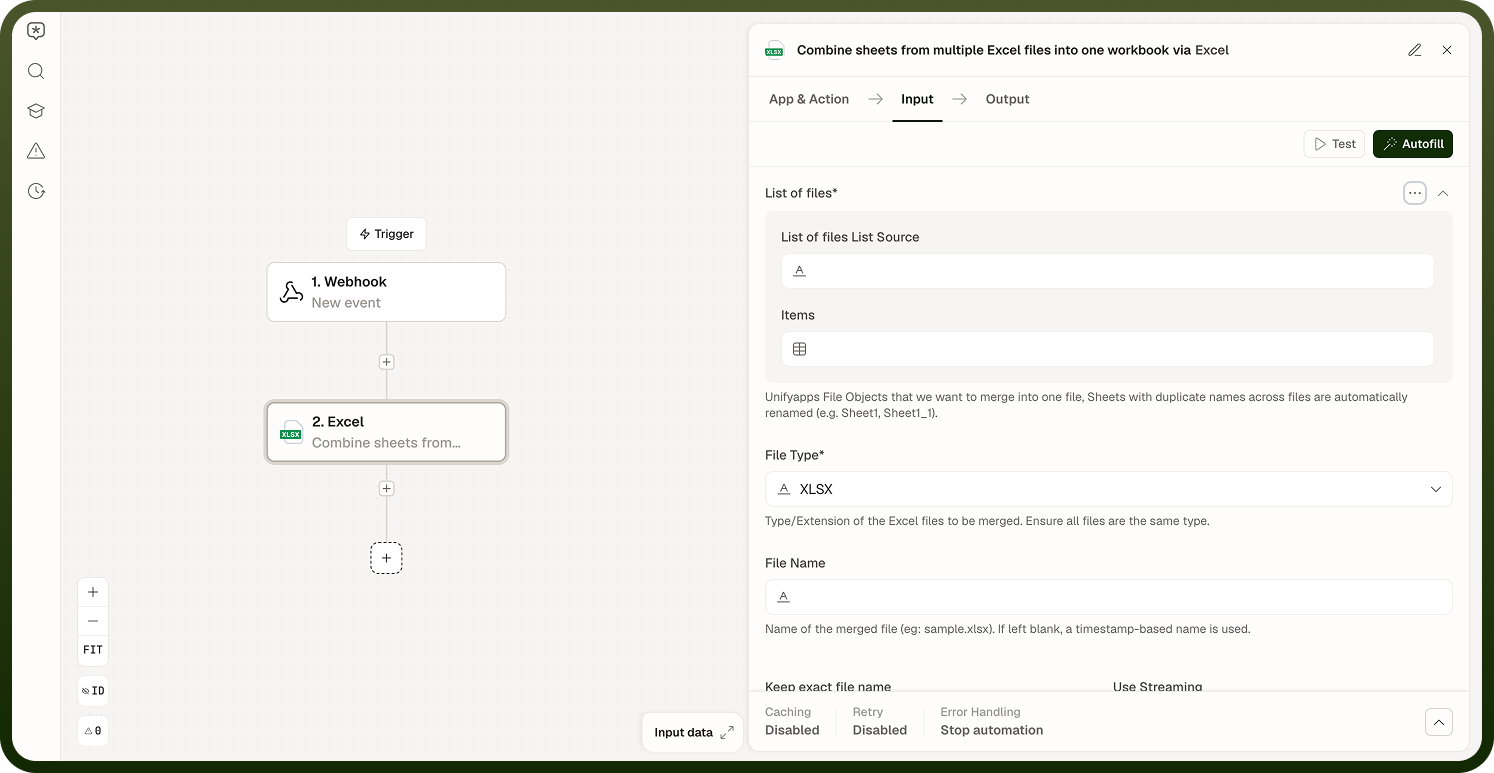
Combines data from multiple Excel files into a single consolidated file.
Configuration: List of Files (file objects to merge); File Type (output format); File Name (merged file name including extension). Output: Merged File object combining all input files.
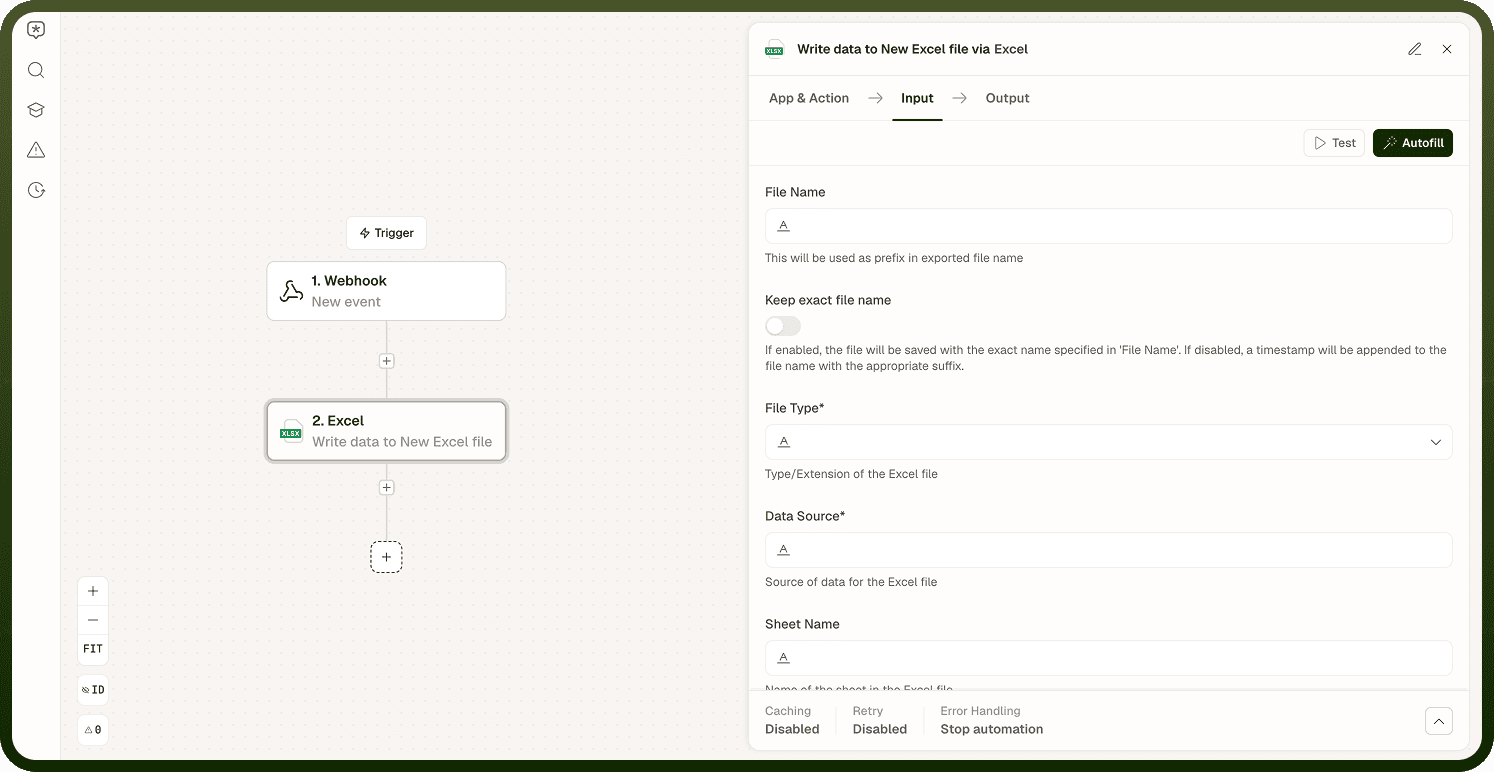
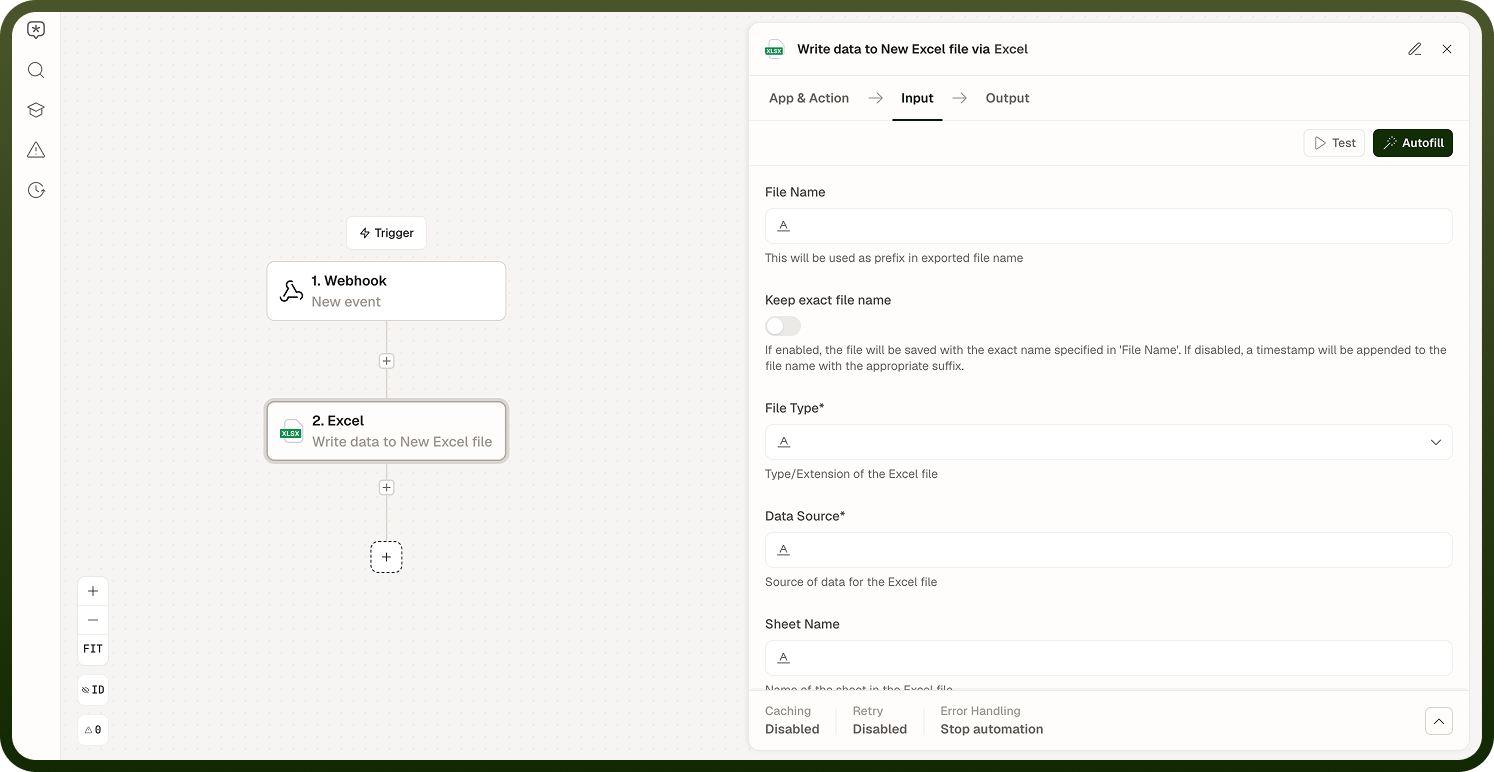
Write Data to Excel File
Writes structured data into an Excel file, supporting both static and dynamic headers.
Configuration: File Name; File Type; Data Source (list of objects or records); Sheet Name; Header Type (Static or Dynamic); Define Headers (required if Static). Output: Updated File with newly written data.
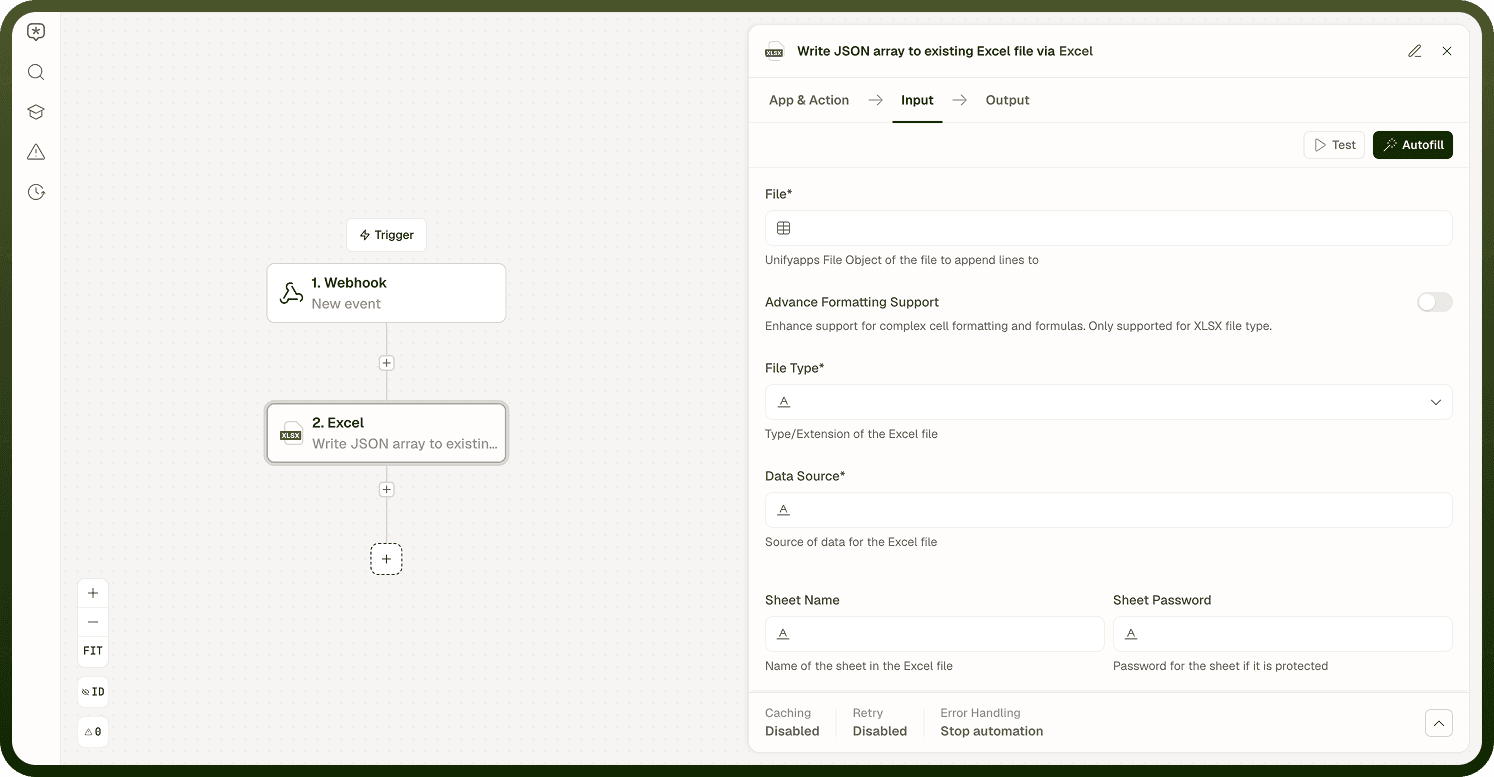
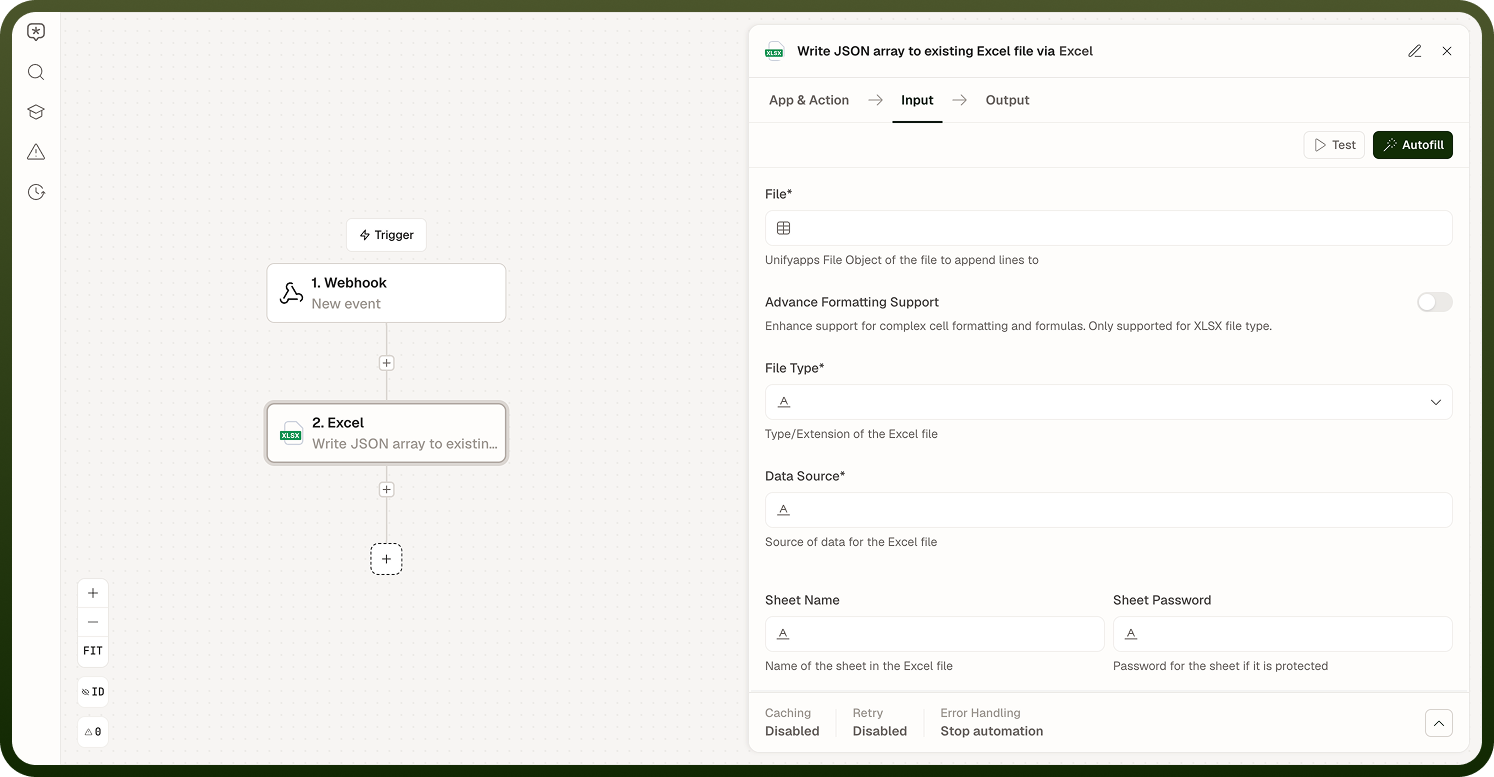
Write JSON array to existing Excel File
Writes data into a specific sheet of an existing file, supporting row/column offsets and styling options including borders and color formatting.
Configuration: File (required — UnifyApps File Object); File Type (required); Data Source (required); Sheet Name; Header Type (required — Static or Dynamic); Define Headers (required if Static); Row Offset (default: 0); Column Offset (default: 0); Add Border; Color Details (Header Row Color, Data Rows Color).
Output: Updated File object ready for subsequent steps.
Notes
The Excel by UnifyApps node works best when you follow these practices:
Use Iterate over Rows in Excel File to process rows one at a time or in batches; pair it with Extract Headers first when the schema is unknown.
Choose Dynamic header type when writing data from an API whose keys already match the desired column names; use Static for full control over column ordering.
Set Row Offset and Column Offset in Write Data to Sheet when writing data alongside existing content to avoid overwriting it.
Convert formats once at the start of a flow rather than in multiple branches — a single conversion step keeps the canvas clean.
Prefer XLSB for large workbooks where open speed matters; use XLSX for broad compatibility.
A well-configured Excel by UnifyApps node reduces errors and keeps automations maintainable.