


The Excel node's formula and column operations let you extend spreadsheets with computed columns, apply batch transformations to cell ranges, and force formula recalculation so stored values reflect the latest computation. Use these operations to enrich source data, prepare files for distribution, or ensure formulas resolve before a file is converted or shared.
Overview
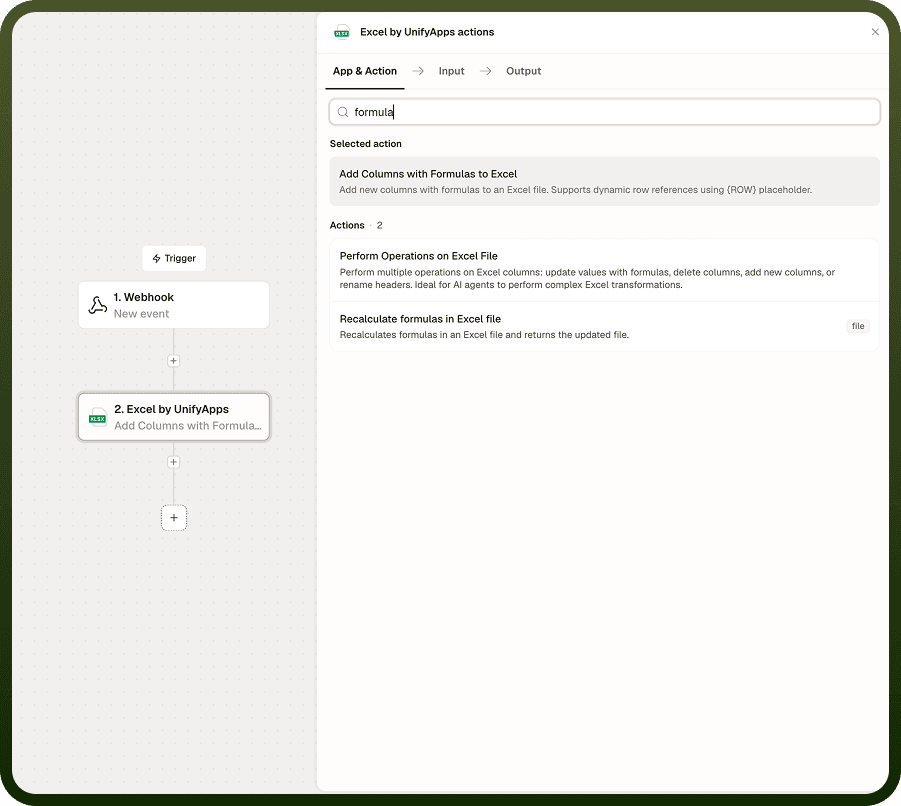
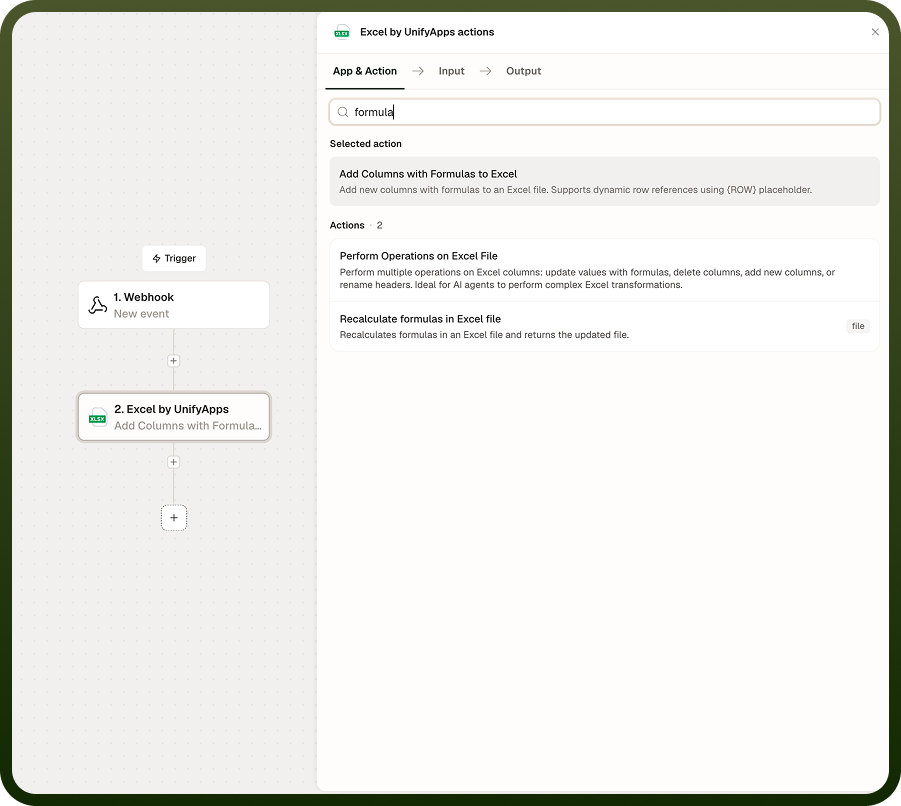
Add Columns with Formulas to Excel appends one or more formula-driven columns to a sheet, with each column header and formula expression defined in the input. Perform Operations on Excel File applies a configurable batch transformation — such as find-and-replace or data normalisation — across a range of cells. Recalculate formulas in Excel file forces every formula in the workbook to evaluate and writes the computed results back into the cells, which is particularly useful before converting to CSV or sending the file to a system that does not support live formula evaluation.
Operations
Operation | Description | Key inputs |
|---|---|---|
Add Columns with Formulas to Excel | Appends one or more columns to a sheet, each defined by a header name and a formula expression. The formula is written into every data row of the column. | File, Sheet name, Column definitions (header name + formula) |
Perform Operations on Excel File | Applies a configurable batch operation to a sheet or cell range. Operations include transformations such as find-and-replace or value normalisation across specified columns. | File, Sheet name, Operation type, Target range or columns, Operation parameters |
Recalculate formulas in Excel file | Evaluates all formulas in the workbook and writes the computed values back into cells. Produces a file where formula cells hold their resolved results rather than formula strings. | File |
Input
Field | Type | Required | Description |
|---|---|---|---|
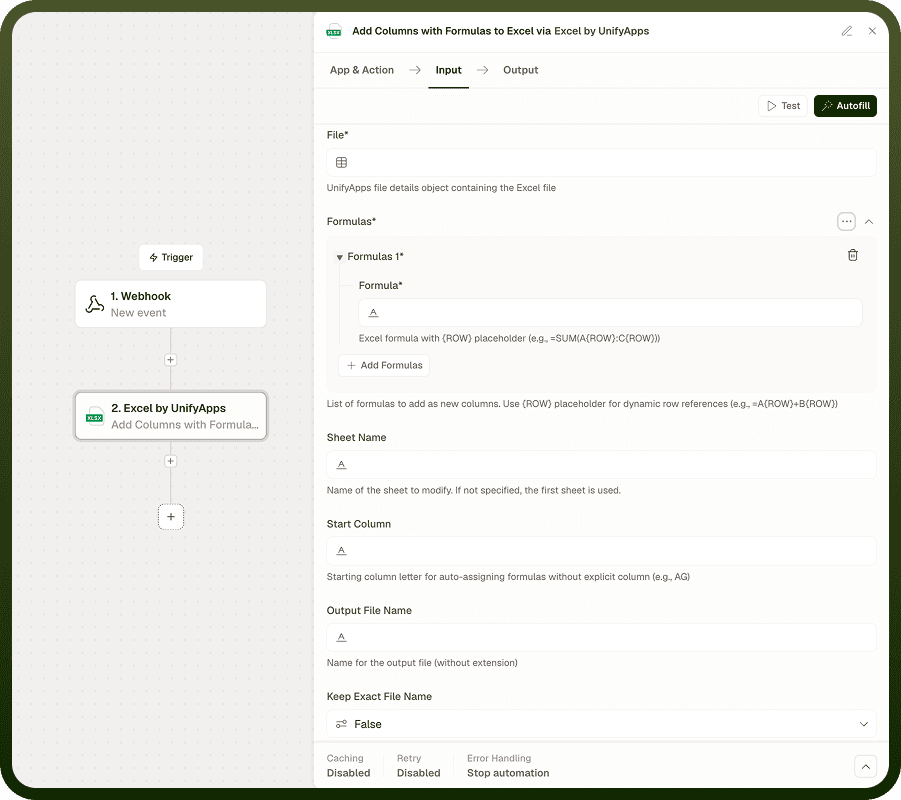
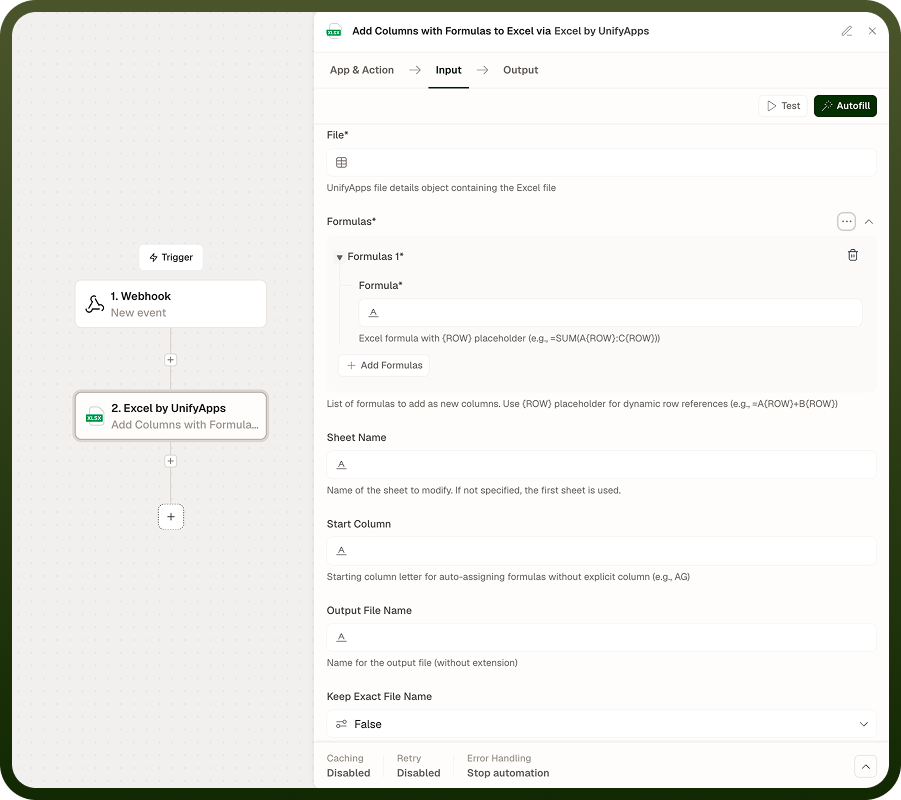
File | File reference | Yes | The Excel workbook to operate on. Supports XLSX, XLS, and XLSB formats. |
Sheet name | String | Yes — Add Columns, Perform Operations | The sheet within the workbook to target. Sheet names are case-sensitive. |
Column definitions | Array of objects | Yes — Add Columns | Each object defines one new column: a header name (string) and a formula (string using standard Excel syntax, e.g. =A2*B2). Row references in the formula are applied relative to each data row. |
Operation type | Enum | Yes — Perform Operations | The type of batch transformation to apply. Available types depend on the platform configuration — examples include find-and-replace and value normalisation. |
Target range / columns | String or array | No — Perform Operations | Limits the batch operation to a specific cell range (e.g. A2:D100) or a list of column names. Omit to apply to the entire used range of the sheet. |
Operation parameters | Object | Varies | Additional parameters specific to the chosen operation type — for example, the find string and replacement string for a find-and-replace operation. |
Output
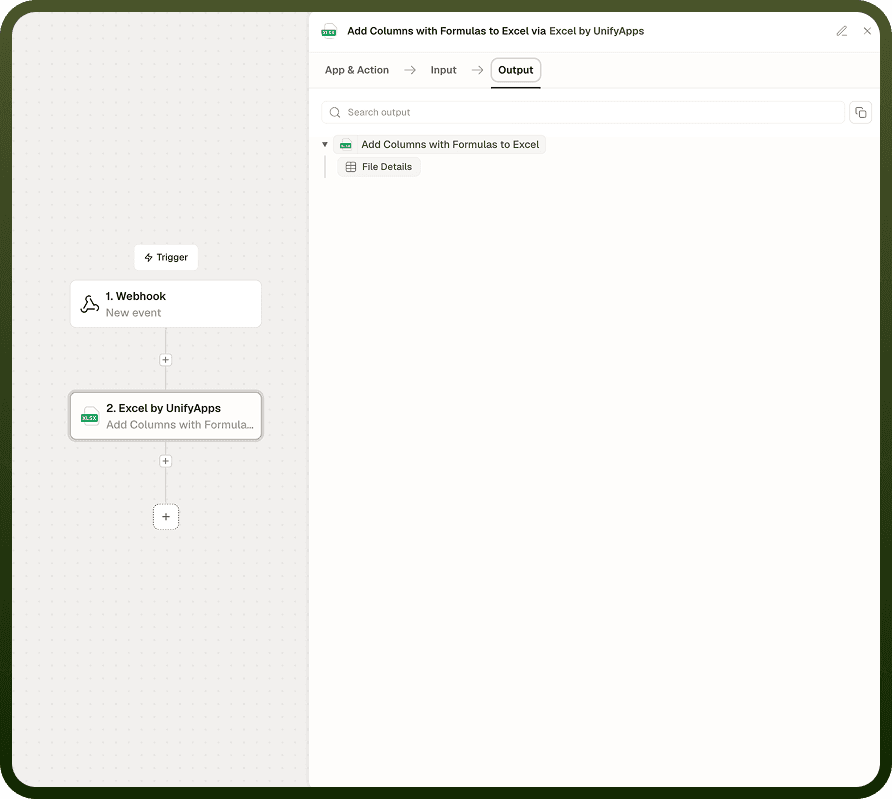
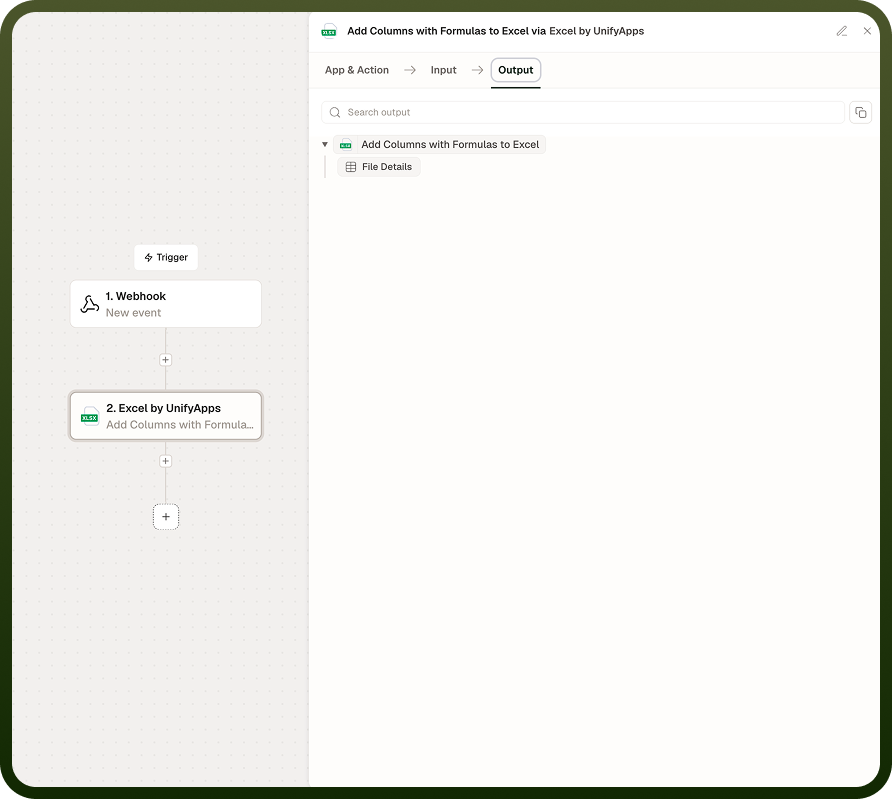
Add Columns with Formulas to Excel — returns the updated workbook as a file object, with the new formula columns appended to the right of the existing data.
Perform Operations on Excel File — returns the updated workbook as a file object, with the batch transformation applied to the specified range.
Recalculate formulas in Excel file — returns the workbook as a file object where formula cells have been replaced by their computed values. The returned file has no live formulas — all cells hold static results.
Notes
Formulas added by Add Columns with Formulas follow standard Excel syntax. Column references in the formula (e.g. A, B) refer to the columns in the workbook by their letter, not by header name.
The Excel node can evaluate formulas when reading a sheet (via the Evaluate formulas option on read operations), which returns computed values without modifying the file. Use Recalculate formulas when you need the computed values stored as cell contents — for example, before converting to CSV or sending the file to a system that cannot run Excel formulas.
Recalculate formulas evaluates all formulas in the workbook, not just those in a single sheet. The returned file contains static values in every previously formula-driven cell.
After recalculation, the output file behaves as a plain data file — formulas are no longer live. Do not use this operation if downstream steps rely on the formulas being preserved as formulas.
Supported file formats: XLSX, XLS, XLSB.
Recalculate before converting: If you are converting an Excel file to CSV and the sheet contains formulas, run Recalculate formulas in Excel file first. This ensures the CSV contains resolved values rather than formula strings.